Start with supported inputs
A controller can connect successfully to a computer while doing nothing inside a particular browser game. A phone can display a game that still expects arrow keys. These are separate questions: what the device can recognise, what the browser can expose and what the game has been designed to use. Begin with the controls published for the actual title and version.
Do not assume support from a screenshot of a controller or a familiar genre. Look for a controls panel, help screen or developer description that names the available inputs. If information is missing, test the equipment you already own before considering a purchase. Buying different hardware cannot add a control method that the game itself does not implement.
Check where keyboard input goes
Browser pages contain more than a game. Search boxes, menus and the page itself can receive keyboard input. If arrow keys scroll the page rather than steer, the game may not have focus. Click or tap the intended game area, follow its start instructions and check whether the controls now behave as described.
Avoid changing several system settings to solve a focus problem. First establish whether the game responds at all in its supported mode. If it does, test a simple movement in a safe opening section. This separates a missing input from an unfamiliar movement feel. A ball that keeps moving after release may be following game physics rather than ignoring the keyboard.
Treat touch as a separate design
Touch controls need usable targets or gestures, enough space around the play area and a layout that remains readable under the player's fingers. A desktop game squeezed onto a small display may not provide those things. Even when a page loads correctly, confirm that the game offers an explicit touch mode before expecting a comfortable mobile experience.
If touch is supported, read whether control depends on taps, swipes, on-screen buttons or device movement. Try the method described instead of translating keyboard habits automatically. Orientation can also matter. A rotation that makes the track clearer may place controls somewhere else, so inspect the full layout before beginning a serious attempt.
Confirm controller behaviour in context
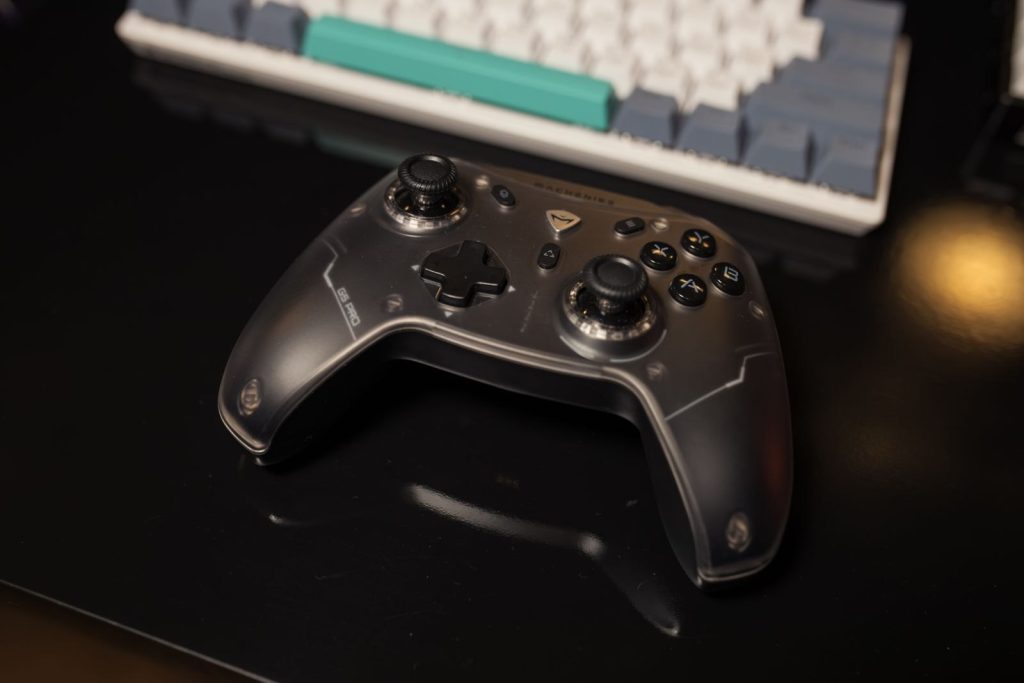
The web platform includes a Gamepad API, but each game chooses whether and how to use it. A recognised controller may require a button press before the game detects activity, or the title may support only a keyboard. Consult the game's instructions and the browser's supported features rather than assuming every connected device will act as a universal substitute.

Where controller play is available, test the actual steering and menu actions. An analogue stick can feel different from digital keys, and button labels may vary across devices. Check how to pause and leave a session as well as how to move. Reliable access to those basic actions matters more than a long list of unused hardware features.
Buy for a verified need
Make a short requirements list before comparing products: supported connection, recognised input type, comfortable layout and compatibility with the device you use. A small arcade game may not benefit from the elaborate controls advertised for other genres. The useful purchase is the one that solves an observed problem while remaining supported by the games you intend to play.
Keep a familiar fallback available while learning a new setup. That makes it easier to compare whether a problem belongs to the game, the connection or the new control feel. Good setup decisions begin with clear support information and a simple test. They do not require treating a hardware upgrade as the automatic answer to every difficult run.
Further reading: MDN: implementing game control mechanisms