Beginners often overlook how the physical placement of input devices affects control accuracy in browser games. Small shifts in reach or posture can introduce unwanted movement that disrupts steering or timing. A deliberate arrangement of the keyboard, mouse and monitor reduces these variables without requiring extra equipment. The process begins with simple measurements and adjustments that anyone can perform using items already present in a typical workspace.
The following sections outline concrete adjustments that focus on reach distance, surface stability and viewing angle. Each step can be tested in a few minutes and reversed if it does not suit the individual workspace. Readers should apply changes gradually and observe how the alterations influence their ability to maintain steady inputs over repeated attempts at the same game.
Measuring reach distance before play
Place the keyboard or mouse so that the elbow rests near the side of the body rather than extended forward. Measure the distance from the edge of the desk to the centre of the input device; a comfortable reach is usually between 20 and 30 centimetres for most adults. If the arm must stretch, slide the chair closer or move the device nearer the body. Use a ruler or a piece of string to confirm the measurement rather than relying on visual estimation alone. This step establishes a baseline that can be checked again after any furniture rearrangement. Different body proportions mean the exact distance varies, so repeat the measurement while seated in the usual posture rather than standing. Pay attention to whether the wrist remains straight during the motion; any bending increases strain over time. Beginners sometimes skip this check because the initial position feels acceptable for a minute or two, yet longer sessions reveal accumulated tension in the shoulder. Recording the final measurement on paper or a phone note allows quick restoration of the arrangement on later occasions. The goal is repeatability rather than a single perfect position that suits every possible game.
Test the position by performing a short sequence of movements that mimic game controls. Note any tension in the shoulder or wrist. Adjust until the motion feels repeatable without lifting the forearm. Common errors include placing the device too close so that the elbow tucks awkwardly against the torso or too far so that the upper arm hangs unsupported. Both extremes reduce precision when small corrections are required. Consider the type of chair in use: a fixed-height seat may require the desk surface itself to be raised or lowered with stable supports. Avoid temporary fixes such as stacking unstable objects that could shift during play. The measurement process also highlights whether the current desk depth is adequate; very shallow surfaces may necessitate moving non-essential items aside to create the required space. Once the distance feels neutral, maintain it for several short sessions before deciding whether further refinement is needed. This methodical approach prevents over-correction based on a single uncomfortable attempt.
Stabilising the work surface
A wobbly desk transmits small vibrations into the mouse or keyboard. Check the legs and joints of the table before starting. If one leg is shorter, insert a thin shim such as folded card under it until the surface remains level during normal pressure. Test stability by pressing down gently on the area where the input device will sit and observe any rocking motion. Even minor movement becomes noticeable when precise steering is required. Different floor types affect the outcome: carpet may compress under one leg while hard flooring keeps everything rigid. In such cases, small rubber pads or adhesive grips can equalise contact without permanent alteration. The process takes only a minute yet removes an otherwise invisible source of inconsistency in input.
Keep the area immediately around the input devices clear of loose papers or cables that can shift under the hand. A stable surface allows finer corrections with less effort. Beginners sometimes assume that any flat table is automatically suitable, yet household desks often have one uneven leg from wear or previous use. Another frequent mistake is ignoring cables that run across the workspace; these can snag during rapid movements and pull the mouse off course. Where possible, route cables along the desk edge or secure them with clips. If the entire desk cannot be made perfectly steady, consider placing a separate rigid board under the input devices alone. This isolates the playing area from broader surface movement. The effort spent on stabilisation pays off most noticeably during longer sessions when fatigue makes any external disturbance more disruptive. Regular checks after moving furniture or cleaning ensure the arrangement does not degrade unnoticed over weeks of use.
Setting monitor height relative to eye level
Position the top of the screen roughly at or just below eye level when seated upright. This angle reduces the need to tilt the head forward or backward during play. Use books or a stand if the monitor sits too low; avoid placing it on top of other objects that block ventilation. Measure from the seated eye position rather than standing height to obtain an accurate reference. Different monitor sizes influence the ideal placement: larger screens may require slightly more distance to keep the entire display within comfortable view. The adjustment also interacts with chair height, so verify both together rather than fixing one in isolation. Beginners often leave the monitor at whatever height it arrived in, then compensate by leaning, which introduces neck strain and inconsistent viewing angles.
Check that the distance from the eyes to the screen allows the entire play area to be seen without leaning. Most users find 50 to 70 centimetres comfortable for standard monitor sizes. Common errors include positioning the monitor too high, forcing constant upward gaze, or too low, requiring downward tilt that compresses the neck. Both postures become tiring within twenty minutes. Where adjustable monitor arms are available they provide finer control, yet stable stacks of books or purpose-made risers achieve similar results at lower cost. Lighting conditions can alter perceived height because glare may prompt an unconscious change in posture. After setting the height, sit normally for a minute and notice whether the head remains relaxed. If any forward or backward tilt occurs, re-measure and adjust. The final position should support neutral spine alignment so that attention stays on the game rather than physical discomfort. Over time this consistency helps maintain the same input habits across multiple sessions.
Aligning input devices with screen centre
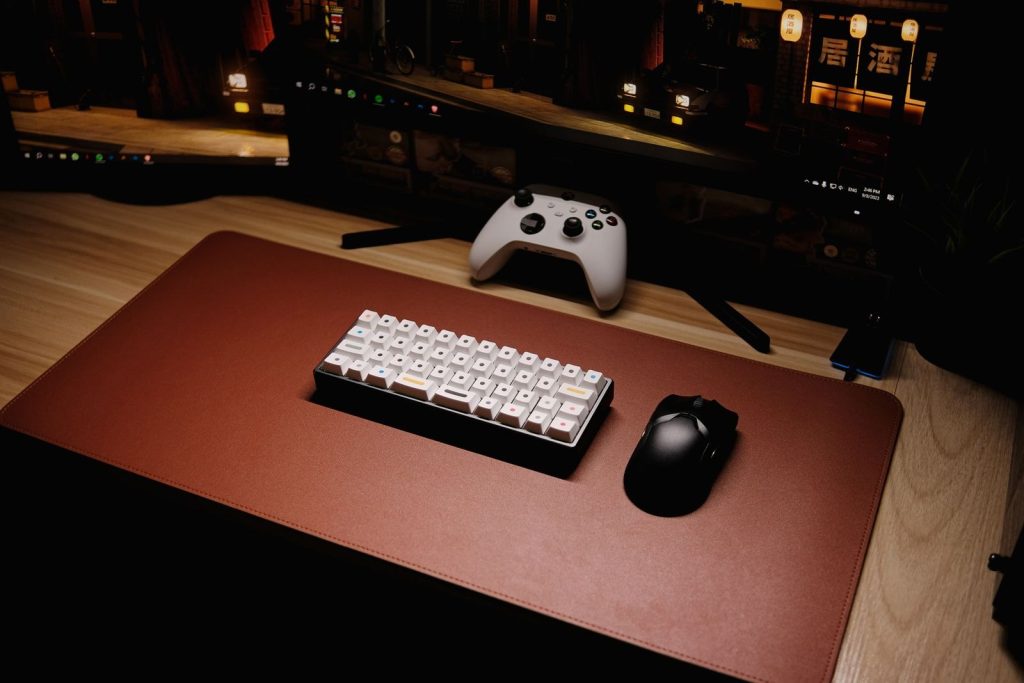
Centre the mouse or keyboard in front of the monitor so that the hand moves along the same line of sight used to track on-screen motion. Offset placement forces the torso to twist slightly, which accumulates fatigue over repeated attempts. Use the monitor stand or bezel as a visual reference when placing the device. Measure the offset from the screen centre to the middle of the keyboard or mouse pad; zero offset is ideal for most users. Shared desks sometimes encourage placing devices to one side to accommodate other tasks, yet this compromises game control. Restoring centre alignment each time prevents gradual drift in posture that would otherwise go unnoticed.
Mark the preferred spot with a small piece of tape on the desk if the setup is shared. This reference helps restore the arrangement quickly on subsequent sessions. Different input styles affect the exact centre point: a full-size keyboard may need its number pad section considered separately from the main keys. Trackball users may prefer a slightly different lateral position than mouse users. The alignment also interacts with monitor bezel width; very thick borders can make visual centring less precise, so measure to the actual display area rather than the outer frame. Beginners sometimes centre the device relative to their chair rather than the screen, which works only if the chair itself remains perfectly centred. Any later chair movement then misaligns everything. The tape marker method removes guesswork and supports quick verification before each session begins. Consistent alignment reduces the mental effort required to translate on-screen movement into physical input.
Accounting for shared household constraints
In multi-user environments, devices may be moved between sessions. Store a simple diagram or photograph of the final arrangement on a phone for reference. Return items to the recorded positions before each play period to maintain consistency. Different household members may have varying reach distances, so note any personal adjustments alongside the main setup. Where several people use the same computer, a brief checklist posted near the desk can remind everyone to restore the arcade configuration. This practice prevents the gradual accumulation of small misalignments that would otherwise require repeated re-measurement.
Where possible, reserve a dedicated corner of the desk for arcade use. Even a narrow strip kept clear of other objects reduces the time spent rearranging before starting. Common errors include assuming that others will automatically respect the layout or that a quick visual check is sufficient. In practice, minor shifts occur during ordinary desk use and must be corrected deliberately. If space is extremely limited, consider portable markers such as small adhesive dots that can be applied and removed without residue. The objective remains the same: minimise variables that affect input repeatability. Over several weeks the habit of restoring the arrangement becomes automatic and supports steadier performance without additional thought.
Checking lighting to avoid glare on controls
Direct light sources behind the monitor or above the desk can create reflections on glossy surfaces. Move lamps to the side or use indirect lighting so that the screen remains the brightest area in view. This reduces the frequency of squinting or head movement. Test different times of day because natural light changes angle and intensity. Window blinds or curtains may need partial closure during certain hours. The same principle applies to overhead room lights; repositioning a desk lamp often solves the problem more effectively than changing the monitor settings alone. Beginners sometimes overlook reflections on the mouse or keyboard surface itself, focusing only on screen glare.
Test the setup by loading the game and observing whether any glare appears on the mouse surface or keyboard during typical play angles. Adjust until the controls remain clearly visible without tilting the head. Different desk materials reflect light differently; matte finishes reduce issues compared with glossy ones. Where permanent repositioning of lights is impractical, a simple piece of matte card placed behind the input devices can block stray reflections. The check should be repeated after any change in room layout or season, as sun angles shift. Consistent lighting supports the same visual conditions across sessions and prevents subtle posture changes made to avoid glare. This step completes the physical arrangement and ensures the earlier measurements remain effective under actual playing conditions.
Reviewing posture after ten minutes
After an initial short session, stand and walk briefly, then return to the chair. Note whether any part of the earlier arrangement now feels awkward. Minor tweaks at this stage often prevent discomfort that would otherwise develop later. Different body types respond to the same setup in individual ways, so personal observation remains the final judge. The review also reveals whether the chosen distances interact unexpectedly with breathing or clothing movement during concentrated play. Recording observations immediately after the test preserves details that fade quickly from memory.
Record the final distances and angles in a note for future reference. Consistent conditions support steadier input over successive sessions. Common errors include making large changes after one brief test or dismissing minor discomfort as unimportant. Both approaches undermine the purpose of the review. Where possible, compare notes across two or three short sessions before declaring the arrangement final. The process emphasises gradual refinement rather than a single perfect configuration. Once established, the setup can be maintained with occasional checks rather than constant readjustment, freeing attention for the game itself.